Receiving a Google critical security alert that says “someone knows your password” can be alarming. The message does not always mean someone has successfully taken control of your account, but it does mean Google detected a serious security risk that should be addressed immediately.
Before clicking anything in the email, verify the alert directly through your Google Account.
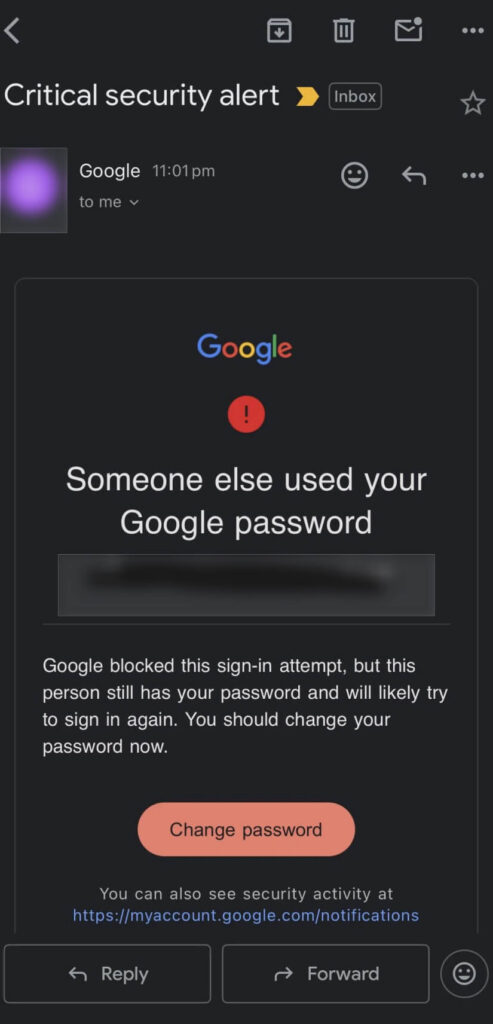
What Does “Someone Knows Your Password” Mean?
Google may display this warning when it detects suspicious activity or believes your password has been stolen or compromised. Google may then ask you to change the password to help ensure that only you can continue using the account.
Your password could have been exposed because:
- You reused it on another website that experienced a data breach.
- You entered it into a phishing website.
- Malware captured information from your computer.
- Someone attempted to sign in from an unfamiliar device or location.
- The password appeared in a known collection of compromised credentials.
The warning does not necessarily confirm that someone successfully accessed your emails or files. However, you should treat the password as unsafe until you verify the activity and secure the account.
How To Know If the Google Critical Security Alert Is Real
Scammers sometimes create fake Google security alerts to pressure people into clicking on malicious links and entering their passwords.
Do not click the button in the email. Instead, open a new browser window and go straight to your Google Account. Then:
- Open Security & sign-in.
- Find Recent security events or Recent security activity.
- Select Review security events.
- Look for the same warning, device, location, or activity mentioned in the email.
Google specifically recommends reviewing account activity directly when you receive a suspicious security email.
A fraudulent alert may also include:
- A request to reply with your password or verification code.
- A link leading to an unfamiliar website.
- An unexpected attachment.
- Spelling or formatting mistakes.
- Threats that your account will be permanently deleted within minutes.
- Requests for payment or financial information.
Even when the sender name looks like Google, verify the warning through your account. A familiar sender name or email address should not be your only proof that a message is legitimate.
When using Gmail on a computer, you can also hover over a link without clicking it to preview the destination address.
What To Do If the Alert Is Real
If the warning appears in your Google Account or you see activity you do not recognize, take action immediately.
Review the Security Event
Open the event and review the device, location, and approximate time.
If you do not recognize the activity, select No, it wasn’t me, or follow the available instructions to secure the account. If you recognize it, confirm that the activity was yours.
Change Your Google Password
Create a new password that is:
- Long and difficult to guess.
- Different from your previous passwords.
- Used only for your Google Account.
Do not simply add a number or symbol to the end of the old password.
If you reused the compromised password anywhere else, change it on those accounts as well. Google recommends changing passwords for other apps and websites that use the same password or are connected to the affected email address.
Review Devices Connected to Your Account
Go to the Your devices section of your Google Account and select Manage all devices.
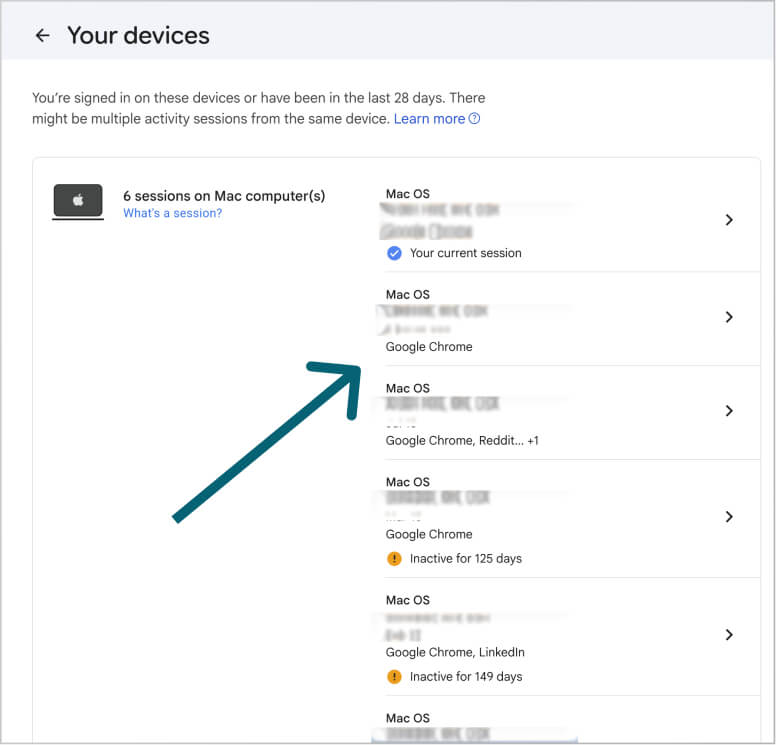
Review every computer, phone, tablet, and session listed. Sign out of anything you do not recognize or no longer use. Google’s device page may include devices that are currently signed in or were signed in during the past few weeks.
Do not assume that changing the password automatically resolves every active session. Review the device list manually.
Check Your Recovery Information
Confirm that your recovery phone number and recovery email address still belong to you.
An attacker may change recovery information to regain access after you reset the password. Remove any unfamiliar phone numbers, email addresses or sign-in methods immediately.
Also review:
- Passkeys.
- Security keys.
- Authenticator settings.
- App passwords.
- Third-party connections.
- Apps that have access to Google Account data.
Google allows users to review linked apps and remove connections they no longer recognize or trust.
Check Gmail Settings
Someone with access to Gmail may create forwarding rules or filters that quietly send copies of incoming messages to another account.
In Gmail, open Settings and review:
- Forwarding and POP/IMAP
- Filters and Blocked Addresses
- Accounts and Import
- Email delegation
- “Send mail as” addresses
Remove any forwarding addresses, filters, delegates, or connected accounts you did not add. Google suggests checking for unauthorized labels, filters, and forwarding rules if your account was compromised.
Turn On Stronger Sign-In Protection
Enable 2-Step Verification if it is not already active. This adds another method of verification beyond the password, such as a phone prompt, authenticator code, or physical security key.
You can also create a passkey. Passkeys allow you to sign in using a trusted device’s fingerprint, face scan, PIN, or screen lock rather than relying only on a password.
Check Your Device for Malware
Update your browser, operating system, and security software. Then run a scan using trusted security software.
This is especially important if you recently:
- Entered your password on a suspicious website.
- Downloaded an unfamiliar attachment.
- Installed an unknown browser extension.
- Used a public or shared computer.
- Noticed unexplained pop-ups or browser redirects.
Remove browser extensions and software you do not recognize.
What If You Cannot Sign In?
Someone may have already changed your password, recovery phone number, or other account information.
Use Google’s official Account Recovery process and answer the questions as accurately as possible. Google recommends using account recovery when someone changes your account information, deletes the account, or prevents you from signing in.
Whenever possible, attempt recovery using:
- A device you previously used with the account.
- A browser you regularly use.
- A familiar location, such as your home or office.
- The most recent password you remember.
Avoid individuals or businesses claiming they can bypass Google’s recovery process for a fee. Never provide a stranger with your password, verification code, or recovery information.
Does Changing the Password Fix Everything?
Changing the password is an essential first step, but it may not address every part of an account compromise.
An attacker could have already:
- Added a forwarding rule.
- Connected a third-party application.
- Changed recovery information.
- Created an app password.
- Added a new sign-in method.
- Downloaded sensitive emails or files.
- Used the account to reset passwords for other services.
After changing the password, complete Google’s Security Checkup, review devices, and inspect your Gmail settings. Google’s Security Checkup provides personalized recommendations related to recovery options, sign-in protection, and account access.
Continue watching for unfamiliar alerts, password-reset messages, and account changes.
When Should a Business Contact Its IT Provider?
A compromised business Google Account can affect multiple employees. It may expose company files, customer information, financial records, or access to other business systems.
Contact your IT provider immediately when:
- The account contains sensitive company or customer information.
- The password was reused across business applications.
- An unfamiliar device or third-party connection appears.
- Gmail forwarding rules or account settings were changed.
- Multiple employees receive similar warnings.
- Suspicious messages were sent from the account.
- The affected user has administrator access.
- You are unsure how long the account may have been exposed.
Your IT provider can help investigate the incident, secure connected systems, reset affected credentials, and determine whether additional reporting or response steps are necessary.
How To Prevent Future Google Account Security Alerts
No security measure prevents every possible attack, but a few basic practices can greatly reduce your risk:
- Use a different password for every account.
- Store passwords in a trusted password manager.
- Enable 2-Step Verification.
- Consider using passkeys or physical security keys.
- Keep recovery information current.
- Review connected devices and applications regularly.
- Complete Google’s Security Checkup.
- Keep browsers and devices updated.
- Avoid entering passwords after clicking links in unexpected emails.
- Train employees to recognize phishing efforts.
For businesses, account security should also include clear password policies, employee security training, and a documented process for responding to suspicious activity.
Frequently Asked Questions
Does This Alert Mean My Google Account Was Hacked?
Not necessarily. Google may have detected suspicious activity, a stolen password, or another serious account risk. You should still review the alert and change the password immediately if you do not recognize the activity.
Why Did Google Say Someone Knows My Password?
Your password may have been exposed in a data breach, reused on another compromised website, entered into a phishing page, or captured by malicious software. Google may also issue the warning after detecting suspicious activity connected to the account.
Should I Click the Link in the Security Alert Email?
The safest option is to open your Google Account directly and review the Recent security activity section. This allows you to confirm whether the warning appears inside the account without relying on the email link.
What If I Recognize the Device or Sign-In?
Confirm that the activity was yours and complete any additional security steps Google requests. If anything else looks unfamiliar, change your password and review the rest of your account settings.
A Google critical security alert should never be ignored. Verify the warning directly, change compromised passwords, and check the entire account for unauthorized changes. Acting quickly can prevent a stolen password from turning into a larger security incident.