A sudden Google alert can throw off your whole day. You are answering messages, checking invoices, moving between tabs, and then an alert email shows up saying there was a suspicious sign-in, a blocked attempt, a new device, or a password issue connected to your account.
Sometimes the warning is real. Sometimes it is a fake Google message written to scare users into clicking before they think.
This is where people get stuck. They do not want to ignore a real security problem, but they also do not want to hand their password to attackers on a fake login page. That is the right concern.
So, how to tell if a Google security alert is real? Do not judge it by the email alone. Verify it from your Google Account.
Will Google Send You a Security Alert?
Yes, Google can send you a security alert when it notices activity that may affect your Google account. That may include a sign-in from a new device, a login from a different location, a password change, a recovery email change, or an access attempt that Google blocked because it did not look normal.
That doesn’t always mean someone got into the account. A real warning may happen because you bought a new phone, used a VPN, signed in while traveling, changed browsers, or connected to a new app. Still, it should be reviewed. A harmless explanation and a serious risk can look similar at first.
Why Google Sends Alerts About Your Google Account
Google alerts are meant to help users respond quickly. If someone tries to access an account from an unfamiliar device or location, that notice gives you an opportunity to review the activity before it becomes a bigger problem.
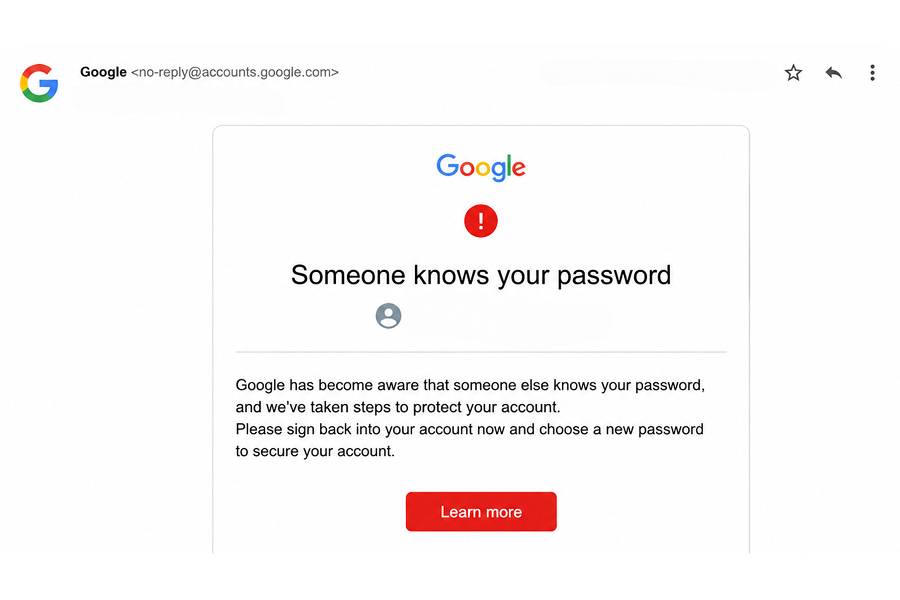
The problem is that attackers know these messages get attention. They copy the tone, colors, logos, and wording from real Google security messages and use them in phishing efforts. I have seen alert scams that looked rough and obvious, and others polished enough to fool a careful office manager during a busy workday.
Where Real Google Alerts May Appear
A real notice may appear via an email, phone notification, a Gmail warning, or within the account itself. For companies using Google Workspace, admins may also see related activity through managed tools or company device policies.
The safest place to verify the warning is not the button in the alert email. It is the Security section of the account. Open the browser yourself, go directly to Google, and review what is listed there.
How Do I Check a Google Security Alert?
The safest way to check a Google security alert is to avoid clicking anything in the email and go straight to your Google Account instead.
Use this process:
- Open a trusted browser
- Go directly to your Google Account
- Open the Security section
- Review recent security events
- Check which devices are signed in
- Review recovery options and connected apps
- Secure the account if something looks unfamiliar
A real alert should usually show up in your account security activity. A fake alert is often trying to pull you away from Google and onto a lookalike page built to steal your password or other account details.
Use the Account Security Page Instead of the Alert Email
Do not start with the button in the message, even if it looks helpful.
If the alert is real, you should be able to find the same event after signing in directly. If the message says there was a new device, check for that device. If it says the password changed, confirm whether that actually happened. If the email is pushing you to act fast, but you do not see the same activity in your account, pause before clicking anything.
After you check the specific alert, take a minute to review the rest of the account too. Look at recent security events, signed-in devices, recovery options, and connected apps.
If you see a device you do not recognize, sign it out. If you see activity you know you did not make, secure the account and change the password. This is also a good time to make sure 2-Step Verification is turned on, especially if this is an account you use for work.
What to Look for in the Security Details
Do not judge the alert from one detail alone. Location is a good example. It is not always exact, especially with internet providers, mobile networks, or VPNs. A nearby city is not a big deal on its own. But if you also see a device you do not recognize, strange timing, or account changes you know you did not make, take it seriously.
Look for:
- A device name you do not recognize
- A location that doesn’t fit your office, travel, or VPN use
- A browser or operating system you do not use
- A password change you did not request
- A recovery phone or email change
- A connected app you did not approve
- Multiple failed sign-in attempts
If several details feel wrong, treat it as a real security risk.
Signs You May Be Dealing With Fake Google or Google Scams
Google scams work because they use a name everyone trusts. The message looks official, the logo is familiar, and the language sounds serious. Then it tries to make you act quickly.
That sense of urgency is the trap.
Email security starts with pausing long enough to check the details. A fake Google alert may include:
- A sender address that does not match Google
- A misspelled or look-alike domain
- Links that do not lead to a legitimate Google page
- Attachments or unexpected downloads
- Requests for your password, verification code, or payment details
- Threats that the account will be deleted immediately
- Odd grammar, strange formatting, or blurry images
- A claim that does not appear on the account security page
Email Security Red Flags to Watch For
One common red flag is a mismatch between the sender name and sender address. The display name may say “Google Security,” but the actual address may come from a free mailbox, a random domain, or something close to Google but not quite right.
Hover over links without clicking. On a desktop, you can usually see the destination in the corner of the browser or email client. If it looks strange, leave it alone. Better yet, do not use the link at all.
Also, watch for any alert email that asks you to reply with private information. A real Google process will not need you to send your password, verification code, or recovery details back by email.
Common Tactics Attackers Use in Alert Scams
Attackers tend to reuse the same ideas because they work. Common examples include:
- Fake password expiration notices
- Fake account lock warnings
- Fake suspicious sign-in alerts
- Fake shared document notifications
- Fake recovery email checks
- Fake IT support messages tied to Google security
These scams are not always sloppy. Some are convincing. The goal is to move users quickly enough that they do not distinguish a real Google message from a phishing threat.
How to Distinguish a Real Google Security Alert From a Phishing Threat
A real Google security alert should usually line up with what you see when you check directly through your account.
A likely real alert will usually have a few of these traits:
- The activity appears in recent security events
- The device, time, or location matches something you did
- You can review the event after signing in directly
- The alert gives activity details instead of only using fear
- The message does not ask you to enter a password inside the email
A likely fake or suspicious alert often looks different:
- The email is urgent, but the account shows no matching activity
- The sender address or link looks slightly wrong
- The message asks for a password or verification code
- The email includes an attachment or download
- The link goes to a page that only looks like Google
When you are unsure, use your account to check, not the email.
What to Do When the Security Alert Is Real
If the warning is real and you do not recognize the activity, act quickly but stay calm.
Start from your account page. Change the password, sign out of unfamiliar devices, review recovery options, and remove connected apps you do not recognize. Turn on two-step verification or passkeys if they are available for your setup.
Then check Gmail. Look for forwarding rules, filters, delegated access, or sent messages you did not create. Attackers do not always make noise once they get in. Sometimes they quietly set up forwarding so they can keep watching.
Steps for Business Users
If the account is used for work, involve IT or your managed service provider. One compromised login can affect shared drives, customer messages, vendor payments, saved files, and other users in the company.
Business users should:
- Report the alert to IT
- Don’t delete the message until it is reviewed
- Check whether other users received similar alerts
- Review shared files and sensitive email activity
- Document the timeline and any steps previously taken
This is how a small issue stays small.
What to Do When the Alert Looks Like a Scam
If the alert looks like a scam, do not click links, open attachments, reply, or forward it casually. Report it as phishing in Gmail or through your company’s reporting process. If company policy allows, delete it after reporting.
If you are unsure, ask IT. I would rather have a user report ten suspicious messages that turn out to be nothing than ignore one real threat.
If You Already Clicked the Link
Stay calm. Close the page right away. Do not enter any more information.
If you entered a password, change it immediately from the real Google Account page. Check devices, recovery settings, connected apps, and recent security events. If this is a business account, contact IT to scan for malware, inbox rules, suspicious logins, and other signs of compromise.
How Businesses Can Reduce Account Security Risk
User awareness helps, but it is not enough by itself. Businesses should layer protections across email security, devices, passwords, and access controls.
That may include:
- Multi-factor authentication
- Strong password standards
- Password managers
- Managed devices
- Endpoint protection
- User phishing training
- Regular account reviews
- Google Workspace security reviews
Security works best when it is layered. No single tool catches everything.
Why Email Authentication Matters
DMARC, SPF, and DKIM help mail systems verify whether a message actually came from the domain it claims to be from. They do not stop every phishing attack, but they can reduce spoofing and improve trust in legitimate email.
For a business, if attackers can impersonate your company, your customers, and your employees are at higher risk. Email authentication is one way to reduce that threat.
How BCA Helps Strengthen Account Security
At BCA, we help businesses implement practical controls before a security alert becomes a larger incident. That can include managed IT support, email security, account reviews, Google Workspace settings, device protection, employee training, and response planning.
Many companies do not need a complicated lecture. They need someone who can review the alert, check the account, assess the risk, and tell them what to do next.
Conclusion: Slow Down, Verify, Then Secure the Account
The safest way to tell if a Google security alert is real is to verify it in your Google Account, not by email alone.
Real alerts should be reviewed quickly. Fake alerts should be reported and avoided. And if the message involves a business account, handle it carefully, because a single login can access a lot of company information.
Slow down. Check the source. Secure the account.
And if your team is not sure what to do next, BCA can help you verify the issue, protect your users, and strengthen your account security going forward.