Your Google Account security settings help you manage how you sign in, protect your account password, review connected devices, and check for suspicious activity.
Here’s how to find your security settings and what each major section means.
How to Access Your Google Account Security Settings
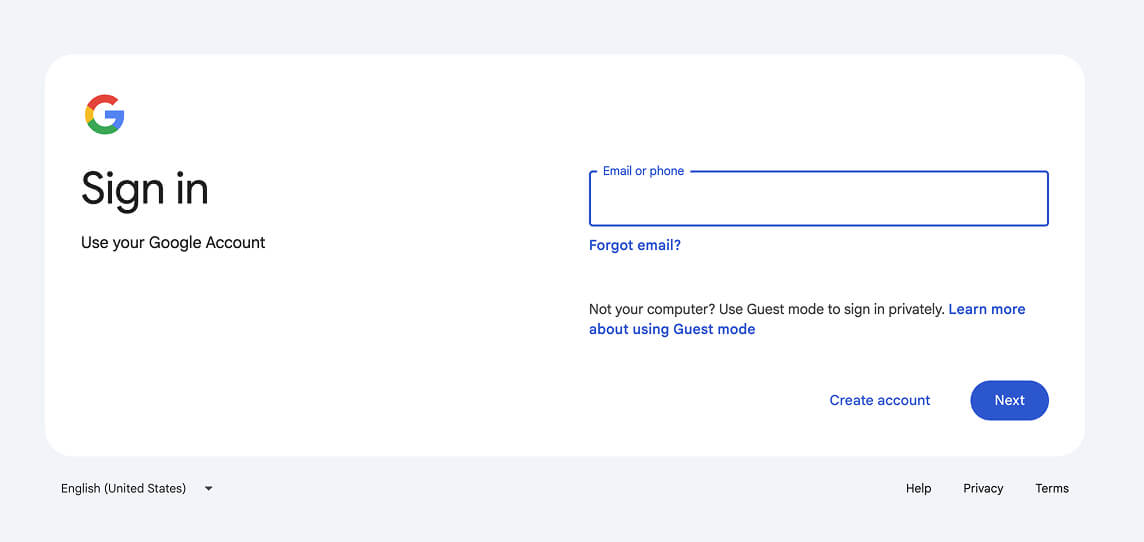
Step 1: Sign In to Your Google Account
First, sign in to your Google Account. You need to be signed in before you can review or change most security settings for your account. Google’s security page also notes that users must sign in to review and adjust these settings.
Step 2: Open Your Account Menu
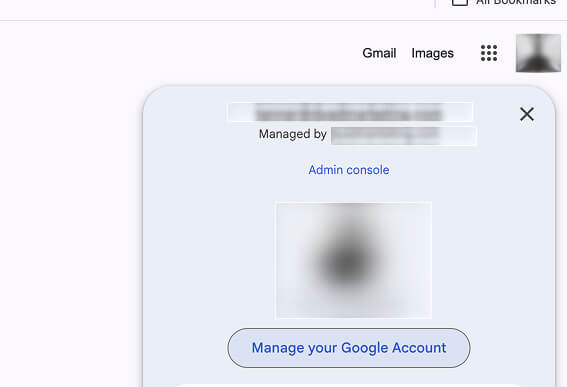
Once you are signed in, click your profile picture or initial in the top-right corner of the screen.
This opens your account menu.
Step 3: Select “Manage Your Google Account”
Next, select Manage your Google Account.
This takes you to the main area where you can manage your account, including personal info, privacy settings, and security settings. Google’s help documentation also points users to the profile icon and Manage your Google Account option when reviewing account settings.
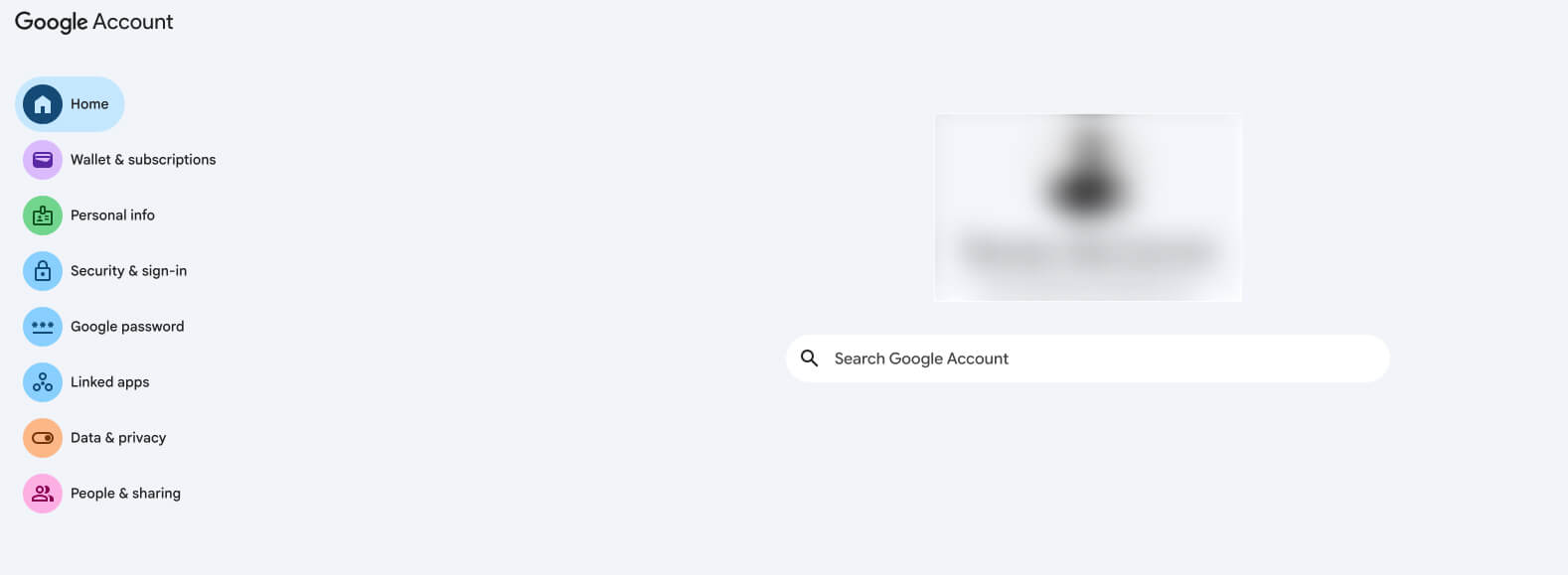
Step 4: Click the Security Tab
From the left-hand menu, click Security.
This is where you can review recent activity, update how you sign in, manage devices, and check other settings that help protect your Google Account.
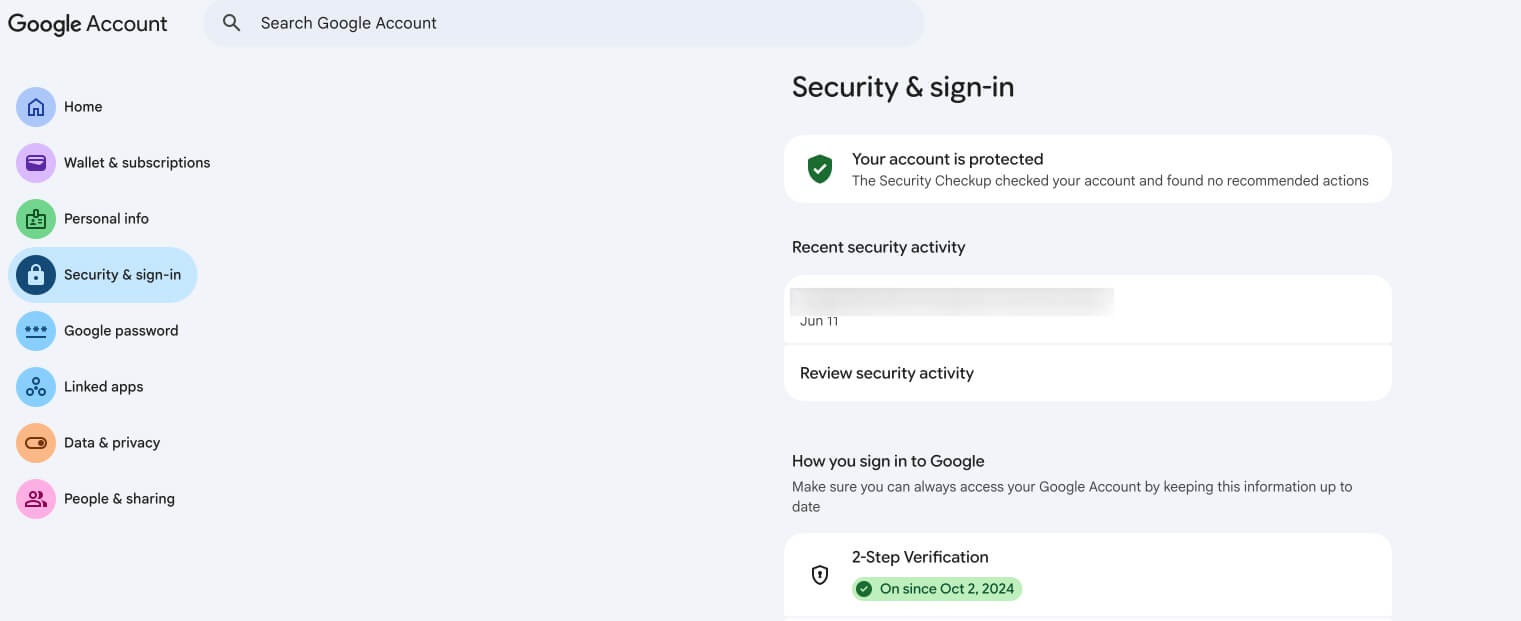
What You Can Manage in Google Account Security Settings
Security Recommendations
Google may show security recommendations at the top of the page.
These are suggested actions that can help make your account safer. Google’s Security Checkup is designed to provide personalized recommendations for strengthening your account security.
Recent Security Activity
Recent security activity shows important actions related to your account.
This may include new sign-ins, password changes, alerts, or other activity Google thinks you should review.
Your Devices
The Your devices section shows devices that are signed in to your Google Account.
Review this section to make sure you recognize each phone, computer, or tablet. If you see a device you do not recognize, you should sign out of it and review your account security.
Ways to Sign In
This section shows how you sign in to your account.
It may include your account password, passkeys, two-step verification, and other sign-in options.
Recovery Phone and Recovery Email
Recovery information helps Google confirm your identity if you get locked out of your account.
Make sure your recovery phone number and recovery email are current.
Third-Party Apps and Services
This section shows apps, websites, and services connected to your Google Account.
If you no longer use an app or do not recognize it, remove access.
What Each Google Account Security Setting Means
Account Password
Your account password is the main password used to sign in to your Google Account.
If your password is old, weak, or reused on other websites, it is a good idea to update it.
Two-Step Verification
Two-step verification adds another layer of protection when you sign in.
Instead of only using your password, Google may ask for a second step to confirm it is really you. Google explains that two-step verification helps protect your account even if someone steals your password.
Passkeys
Passkeys are another way to sign in to your Google Account.
They can let you sign in with your fingerprint, face scan, or screen lock instead of typing a password. Google says passkeys are designed to be an easier and more secure alternative to passwords.
Recovery Information
Recovery information includes your recovery phone number and recovery email.
Google can use this information to help confirm that you own the account if you forget your password or cannot sign in.
Signed-In Devices
Signed-in devices are devices currently using your Google Account.
This section is helpful if you got a new phone, used a shared computer, or forgot to sign out of an old device.
Connected Apps
Connected apps are third-party apps or services that have access to part of your Google Account.
For example, you may have signed in to another app using Google or given an app permission to access certain information.
Google Account Security Settings vs. Privacy Settings
What Security Settings Control
Security settings help protect access to your account.
They focus on things like passwords, sign-in methods, two-step verification, devices, and suspicious activity.
What Privacy Settings Control
Privacy settings help you manage what information Google saves or uses across its services.
This may include activity history, ad personalization, location history, and other data-related settings.
Why Both Matter
Security settings and privacy settings are different, but both are important.
Security settings help keep other people out of your account. Privacy settings help you control how your information is used.
Quick Google Account Security Checklist
1. Check Your Security Recommendations
Start with any recommendations Google shows at the top of the Security page.
2. Review Your Account Password
Update your password if it is weak, old, or used on other websites.
3. Turn On Two-Step Verification
Two-step verification gives your account an extra layer of protection.
4. Review Your Devices
Sign out of any device you do not recognize or no longer use.
5. Update Recovery Information
Make sure your recovery phone number and recovery email are still correct.
6. Manage Third-Party App Access
Remove access for apps you no longer use or trust.
FAQs About Google Account Security Settings
How do I access my Google Account security settings?
Sign in to your Google Account, click your profile picture, select Manage your Google Account, and then click Security.
Do I need to sign in to manage my Google Account security settings?
Yes. You need to sign in before you can view or update most settings related to your account security.
Where can I change my account password?
You can change your account password from the Security section of your Google Account.
What is two-step verification?
Two-step verification adds another step when you sign in. This helps protect your account if someone gets your password.
Can I manage privacy settings from the same area?
Yes. Privacy settings are also available from your Google Account dashboard, but they are separate from the Security section.
What should I do if I see a device I do not recognize?
Sign out of the device, change your password, and review your recent security activity.
What is the Google Security Checkup?
Google Security Checkup is a tool that helps you review your account safety. It can point out issues with your password, devices, recovery info, and connected apps. You can take the Security Checkup from your Google Account security settings.
How does Google protect my account access?
Google protects account access with security controls like passwords, two-step verification, passkeys, recovery options, and suspicious activity alerts. These settings help reduce the chance of someone else getting into your account.
What should I do if I lose access to my Google Account?
If you lose access to your Google Account, use Google’s account recovery process. This may ask you to confirm your recovery email, recovery phone number, past passwords, or other details connected to your account.
Are Google Account security settings important for Gmail and Android?
Yes. Your Google Account is often connected to Gmail, Android devices, Google Drive, YouTube, and other Google services. Keeping your account secure helps protect the apps and online accounts connected to it.
What is Google Password Manager?
Google Password Manager helps you save, manage, and check passwords for your online accounts. It can also help identify weak, reused, or compromised passwords.
Can Google Account security settings help protect me from phishing?
Yes. Security settings like two-step verification, recovery info, password alerts, and Security Checkup can help reduce the risk of phishing. However, you should still be careful with suspicious emails, fake sign-in pages, and links that ask for your password.
Final Thoughts
Your Google Account security settings are easy to access and worth reviewing regularly. This is especially important if your business relies on Gmail, Android devices, Google Drive, or other Google services. Strong account security is a small but important part of effective IT management. By reviewing your devices, updating recovery information, enabling stronger sign-in controls, and using tools like Security Checkup, you can help protect your accounts and reduce security risks.